Chart notes
How to add, search, edit, and delete notes on your charts. A Hoshimichibiki plan feature; notes saved through Connect AI appear in the same place.
Chart notes are notes attached to your charts. You can record what you notice and how you read a chart right next to the placements they concern.
Notes are a Hoshimichibiki plan feature.
Ways to keep a record
HOSHIDOU has four places to write things down.
| Name | What it attaches to | Plan |
|---|---|---|
| Today’s reflection | A day and its sky, on Home | Hoshigatari (free during the beta) |
| Notes | A chart’s planets or aspects | Hoshimichibiki |
| AI notes | A conversation saved through Connect AI | Hoshimichibiki |
| Snapshots | A chart’s whole state | Hoshimichibiki |
Adding a note
Press Notes at the top right of a chart screen and a panel opens from the side. When a chart has notes, the button shows the count, as in “Notes (3)”.
- Press Notes on the chart screen
- Open the My notes tab
- Choose a scope for the note from the picker beside the input (see below)
- Type in the “Add a note about this chart…” field and press Add
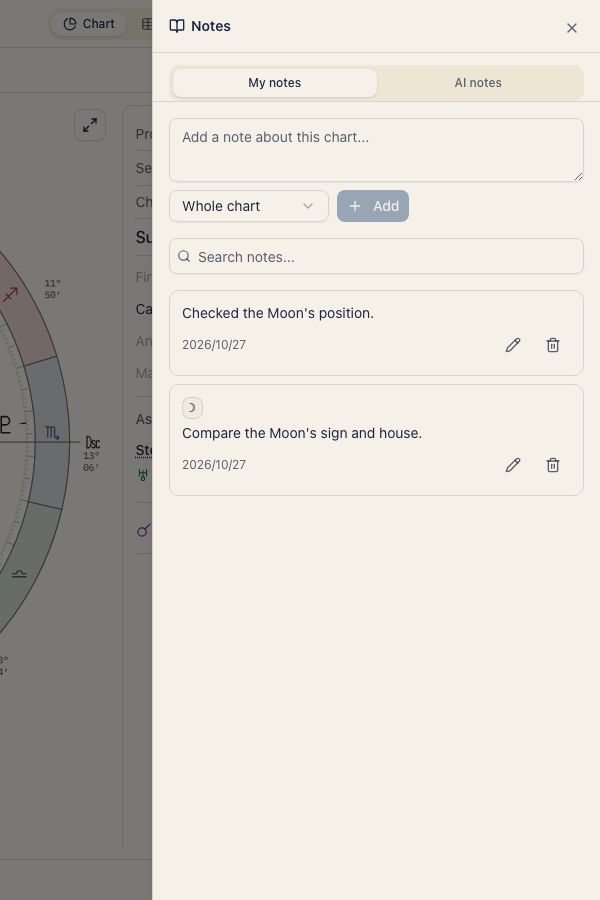
Notes are tied to the birth details the chart is based on, so opening another chart for the same birth details shows the same notes. A note you write while viewing a snapshot belongs to that snapshot only.
Choosing a scope
Every note is attached to something specific. The scope picker offers three levels:
- Whole chart: a note about the chart as a whole
- Planet: a note tied to a single planet (for example, your natal Mars)
- Aspect: a note tied to one aspect between two points
Scoping keeps related observations together. A note about a Saturn-Moon square stays with that aspect.
Searching notes
Use “Search notes…” in the panel to find a note by its text. It helps when your notes have grown and you want to revisit an earlier observation.
Editing and deleting notes
You can edit a note at any time: open it, change the text, and save. Deleting asks “Delete this note?” first. A deleted note cannot be recovered.
AI notes
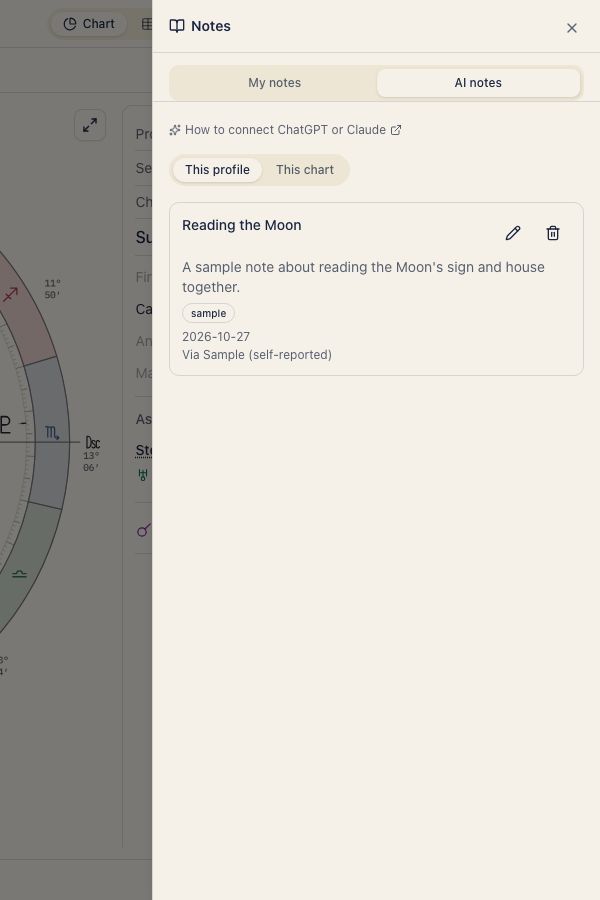
Next to My notes, the panel has an AI notes tab. Notes saved from a conversation you connected to Claude or ChatGPT appear there, kept apart from the notes you write yourself. When you connect an AI, your notes are sent to the AI service as well. See Connect AI for how to connect.
Using notes as a running record
Notes and daily reflections
Today’s reflection on Home records what you noticed on a given day alongside that day’s sky. It is available from the Hoshigatari plan. Chart and aspect Notes are a Hoshimichibiki feature. Revisit daily entries under Past reflections in the app. See Home for the entry point.