Chart Export
How to save a chart as a PNG or PDF with the Export chart menu on the chart screen, and how to set up the PDF cover under Output & PDF.
The Export chart menu saves a Single Wheel, Triple Wheel, Synastry, or Composite chart as an image or PDF. It is useful for printing a chart, sharing it on social media, or sending it by email.
Export options
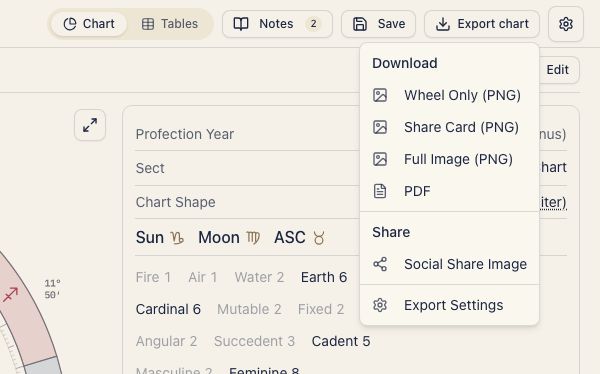
Press Export chart at the top right of the chart screen to open the menu.
| Item | What it includes | Best for |
|---|---|---|
| Wheel Only (PNG) | Just the wheel, with a small date and place caption | Articles and clean sharing |
| Share Card (PNG) | The wheel on a card with the person’s name | Sharing where the subject matters |
| Full Image (PNG) | The entire page including tables as an image | Sharing detailed data at a glance |
| The wheel, positions, house cusps, and other data across several pages | Printing and archiving |
Under “Share” in the same menu, Social Share Image makes the share-card image and opens your device’s share sheet if it has one. On a device without a share sheet, it downloads the image.
How to download
- Open a Single Wheel, Triple Wheel, Synastry, or Composite chart
- Press Export chart at the top right
- Choose an item from the menu
- The file downloads automatically
No other setup is needed.
You can export PNG and PDF from the Single Wheel, Triple Wheel, Synastry, and Composite. Solar Return, Lunar Return, Solar Arc, Harmonic, Draconic, and Astromap have no export button.
The downloaded PNG is 2160 × 2700 pixels for the share card and 2160 × 2240 pixels for the wheel-only image.
The PDF includes the wheel and planetary-position and house-cusp pages. Synastry has a position page for each person. A major-aspect page follows when the chart has major aspects. Single Wheel, Triple Wheel, and Composite wheel pages also show element and modality distributions.
File names
Files are named automatically with the person’s name, the chart type, and the date.
Example: Taro-natal-2026-01-01.png
Items that come in more than one image type add the type, as in Taro-natal-card-2026-01-01.png.
Display settings carry over
A chart calculated for noon because the birth time is unknown carries a note saying so in the exported file.
Output & PDF settings
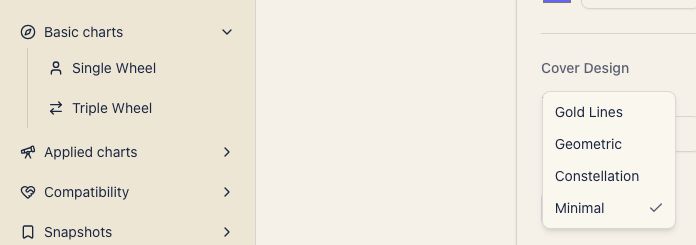
Export Settings in the menu opens Output & PDF under Settings. See Output & PDF for that screen. There you can set up the PDF cover: whether to show a cover, the logo text and sub text, the accent color, the background and text colors, the decorative style, and a cover title for each chart type. A blank title uses the default.
Related pages
- Single Wheel: the chart most often exported.
- Synastry: two-person charts can be exported too.