Managing Birth Details
How to register birth details, set which entry is "Me", edit and delete entries, import and export CSV, and switch charts.
Birth details are the date, time and place of birth HOSHIDOU needs to cast a chart. This page covers registering entries, setting which one is yours, editing, and importing or exporting in bulk.
What are birth details?
The date determines the positions of planets along the zodiac. The time and place determine the house cusps and the precise degree of fast-moving bodies like the Moon.
The more accurate the birth details, the more precise the chart. The Moon travels about 13 degrees a day, so knowing the birth time makes a real difference to its placement.
Registering birth details
- Open Birth Details in the sidebar. The + next to it also adds an entry
- Press Add New
- Enter a Name, the label that tells this entry apart
- Enter the Birth date
- Enter the Birth time. If you don’t know it, choose I don’t know the birth time (see “If the birth time is unknown” below)
- Enter the Birth place
- Add a note if you like, then press Create
Your own birth date is entered on the last screen of sign-up, so what you add here is usually family and friends.
Entering the birth place
- Japan: choose a prefecture, then a city, then a ward
- Other countries: choose “Other countries” and enter the country and place. The time offset is filled in for you
- Enter coordinates directly: type the latitude and longitude. Useful when you know the exact position. After switching to Enter coordinates directly, press Fetch timezone
The time offset and daylight saving at the time of birth are shown on the entry screen and the detail screen.
If the birth time is unknown
The birth details list
Your entries are listed on the Birth Details screen with name, date, time and place. The List and Cards controls at the upper right switch views.
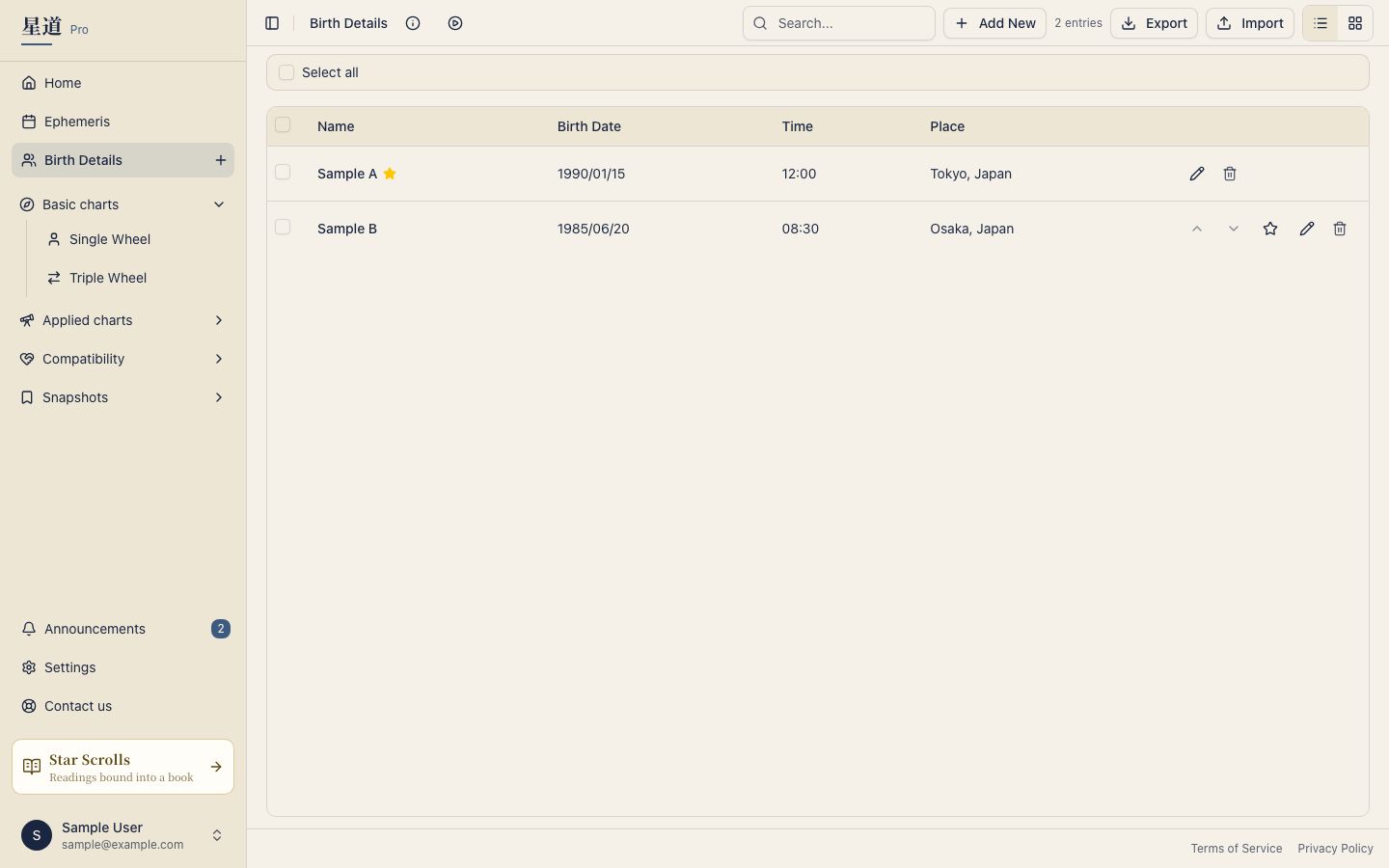
Use Move up and Move down in a row’s menu to reorder.
The free plan holds up to five entries. From the Hoshigatari plan there is no limit.
Setting “Me”
One entry can be marked as yours. Choose Set as my data from the row’s menu, and the entry gets a Me badge and is pinned to the top of the list.
Home draws its wheel, today’s one-liner and the cards for where today lands in you from the “Me” entry. The birth date you enter at sign-up becomes your first “Me”. To switch to a different entry, use the same action on it.
Editing and deleting
Open the ⋮ (more actions) menu at the right end of a row and choose Edit or Delete. The same menu has Set as my data, Move up and Move down.
- Edit: change the name, date, time, place and note. Press Save changes to confirm
- Delete: you can also select several with Select all and delete them together. A deleted entry cannot be recovered
Switching charts
To change whose chart you see, choose that person’s entry from the Birth Details list or from a chart item in the sidebar.
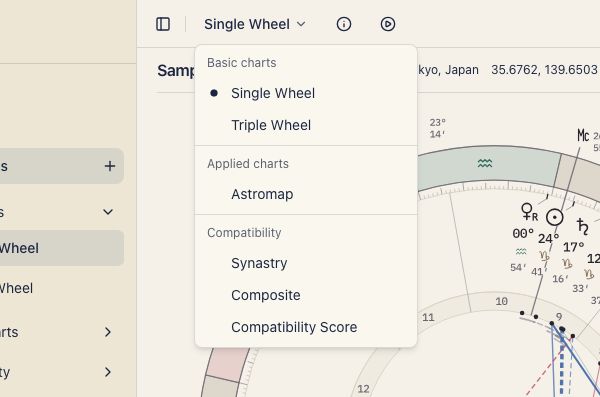
To move to a different chart of the same person, press the title at the top of the chart screen (for example “Single Wheel”). A menu with a down arrow opens, grouped as basic charts, applied charts and compatibility. In the sidebar, the applied charts show only Astromap at first. The others are hidden at first. See Show applied charts in the sidebar for how to turn them on.
CSV import and export
HOSHIDOU reads and writes CSV, which suits registering many people at once or keeping a backup.
- Export: press Export at the top of the screen to download your entries as a CSV file
- Import: press Import to load a CSV file and register many entries at once
The first row of a file you import is this header. Columns are matched by name, so the safest start is a file you exported.
name,birthDate,birthTime,birthLat,birthLon,timezoneId,utcOffset,placeName,notes- Required columns: name, birthDate, birthLat, birthLon, timezoneId, utcOffset
- birthDate is YYYY-MM-DD and birthTime is HH:MM. Leave the time empty if you don’t know it
- utcOffset is a number of hours (9 for Japan)
A sample row:
Hanako,1990-04-15,08:30,35.6812,139.7671,Asia/Tokyo,9,Tokyo,