Connect AI (Claude & ChatGPT)
Connect your HOSHIDOU charts to Claude or ChatGPT and read your chart in conversation, with setup steps, example requests, and developer reference.
Connect AI lets ChatGPT or Claude read your charts. It is available on the Hoshimichibiki plan (free during the beta).
Once connected, the AI reads your natal chart and transits to the arcsecond and interprets them with you in conversation. HOSHIDOU does the calculation; the AI you connect does the reading.
What you need
- A HOSHIDOU account on the Hoshimichibiki plan
- An AI client that supports custom connectors (remote MCP): Claude (Pro / Max and similar) or ChatGPT (Plus / Pro / Business / Enterprise / Edu)
What gets shared
Connecting
Start from the app
In the HOSHIDOU app, open “Settings” and choose “AI connections” (/settings/connected-apps). The “AI connections” screen has everything you need to start.

- The Connect section shows the MCP server URL. Paste it into your AI client’s add-connector screen.
- Open Claude and Open ChatGPT take you to each client’s settings, and Setup guide has the steps.
- Once connected, the Connected apps list shows when you approved each app and where it sends data.
Without the Hoshimichibiki plan, the screen says AI connections are available on that plan.
Connect from Claude
In Claude you add HOSHIDOU as a custom connector. The screens differ a little by plan. For the full steps see Claude’s help article Get started with custom connectors using remote MCP. The essentials:
On Pro / Max (individual plans)
- Open “Customize > Connectors”.
- Press ”+”, then “Add custom connector”.
- Enter
https://app.hoshidou.com/api/mcpas the remote MCP server URL. - Press “Add”.
- The HOSHIDOU sign-in screen opens. Sign in with your HOSHIDOU account, review what will be shared, and approve.
On Team / Enterprise, an owner adds the connector with the same URL under “Organization settings > Connectors”, and members connect under “Customize > Connectors” by pressing “Connect”.
After connecting, enable HOSHIDOU for a given chat from the ”+” button at the lower left, then “Connectors”.
Connect from ChatGPT
In ChatGPT you enable Developer mode and register HOSHIDOU as a custom MCP app. See OpenAI’s ChatGPT Developer mode guide and Developer mode and MCP apps in ChatGPT. The essentials:
- Open “Settings > Apps”.
- Enable “Advanced settings > Developer mode”.
- Choose “Create app” and register the remote MCP server:
- App name (anything recognizable, e.g. HOSHIDOU)
- MCP server URL:
https://app.hoshidou.com/api/mcp - Authentication: OAuth
- Save, then sign in on the HOSHIDOU screen, review what will be shared, and approve.
In a conversation, enable HOSHIDOU from “Developer mode” in the composer. Tools that change data (editing or deleting birth details, saving an AI note) ask for confirmation before they run.
Example requests
You do not need to remember tool names. Ask in plain language and the AI picks what it needs.
- “Cast my natal chart and read my Saturn placement.”
- “Overlay today’s transits on my natal chart and point out what stands out.”
- “Cast my 2026 solar return.”
- “Run a synastry between me and my partner and explain the Sun and Moon aspects.”
- “Show me the planetary movements for August 2026, and the void-of-course Moon times.”
- “Save this reading as an AI note for me.”
Revoking access
- In the app, open Settings and choose AI connections.
- In the Connected apps list, choose Revoke on the connection you want to remove.
Revoking disables that connection’s access immediately. To use it again, connect once more with the steps above. You can also remove the connector from the Claude or ChatGPT side in their own connector settings.
For developers
This part is for readers who want to know how the connection works. You do not need it to use Connect AI.
HOSHIDOU exposes an MCP (Model Context Protocol) server at https://app.hoshidou.com/api/mcp, with OAuth for sign-in. Register that URL in a supported AI client and you can manage birth details, calculate charts, and read and write AI notes from inside the conversation.
Tools
The tool names are the formal names the AI uses internally. Each tool has two example phrasings.
Most chart tools take the target birth details (profileId), and optionally a house system (Placidus, Whole Sign, and so on) and a zodiac (tropical or sidereal). If you leave them out, the chart is calculated with Placidus and tropical, not with the display settings in the app. The solar return location is fixed at the birth place. If you do not give a transit time, 12:00 is used. The app’s own starting settings are described in Default settings and calculation basis.
Managing birth details
list_birth_profiles - list saved birth details
Returns all the birth details saved to HOSHIDOU. Use it before a calculation to confirm who you mean.
- “List the people I have saved in HOSHIDOU.”
- “Whose birth details do I have on file right now?”
get_birth_profile - read one set of birth details
Returns one saved set of birth details.
- “Show me the birth details saved for my mother.”
- “Do I have Ayaka’s birth time on file?”
create_birth_profile - add birth details
Pass a name and birth date, and ideally a birth time and place, to save new birth details. Give the place as a name (e.g. Kyoto) and the coordinates and time zone are resolved for you. If you leave out the birth time, noon is used for the calculation; see Managing Birth Details. Astromap is the one chart that requires a birth time, and it returns an error without one.
- “Add my mother: March 4, 1962, born in Kyoto, a little after 7am.”
- “Add my friend Ayaka: November 20, 2000, 14:30, Tokyo.”
update_birth_profile - fix saved birth details
Change any of name, birth date, time, coordinates, place, or notes. Only the fields you pass change. Even a small fix to the time can shift how the houses and angles read.
- “Correct my father’s birth time to 5:40am.”
- “Change the birthplace on the entry I just added to Fukuoka.”
delete_birth_profile - remove birth details
Permanently deletes a set of birth details, along with its notes, saved charts, and annotations. Star Scrolls you have bought are not deleted and stay readable. It can’t be undone. The AI previews what will be removed and only deletes after you clearly agree.
- “Delete the test birth details I made.”
- “Remove the ‘former colleague’ data I don’t use anymore.”
Natal and timing charts
get_natal_chart - Single Wheel (natal)
Computes a birth chart to the arcsecond.
- “Cast my natal chart and read my Saturn placement.”
- “Calculate my natal chart in Whole Sign.”
get_transit_chart - transits
Computes the planetary positions for a date against a birth chart.
- “Overlay today’s transits on my natal chart and point out what stands out.”
- “Look at the transits for August 1, 2026 and tell me which aspects to watch.”
get_progressed_chart - secondary progressions
Computes the secondary progressed chart to a given date.
- “Show me my progressions for now.”
- “Where is my progressed Moon in 2027?”
get_solar_arc_chart - solar arc
Computes the solar arc directed chart to a given date.
- “Give me my solar arc as of today.”
- “Does anything hit my MC by solar arc next spring?”
get_triple_chart - Triple Wheel (natal, progressed, transit)
Computes natal, secondary progressions, and transits as three rings with cross-aspects.
- “Cast the Triple Wheel (natal, progressed, transit) for today.”
- “What aspects line up in my Triple Wheel for December 2026?”
Returns
get_solar_return_chart - solar return
Computes the solar return for a given year, cast at the birth location. Read it for the year that starts on your birthday.
- “Cast my 2026 solar return.”
- “Read my solar return for what the year from this birthday looks like.”
get_lunar_return_chart - lunar return
Computes the first lunar return on or after a given date.
- “Give me my next lunar return.”
- “Calculate the first lunar return on or after July 2026.”
Relationship and two-person charts
get_synastry_chart - synastry
Overlays two saved natal charts and computes the cross-aspects between them.
- “Run a synastry between me and my partner and explain the Sun and Moon aspects.”
- “Cast my synastry with Ayaka.”
get_composite_chart - composite
Builds one relationship chart from the midpoints of two people.
- “Cast the composite for me and him.”
- “Read what our midpoint composite says about the relationship.”
get_composite_transit_chart - transits to the composite
Computes the transits to two people’s composite for a given date, to read the relationship over time.
- “Read our year ahead through the transits to our composite.”
- “What transits are hitting our relationship in 2026?”
Place charts
get_astromap_chart - astrocartography (relocation)
Computes each planet’s MC/IC/AC/DC lines and the parans where they cross, mapped across the Earth. Requires a known birth time.
- “Cast my astromap and tell me where my Venus lines run.”
- “If I were to relocate, which places look good by the relocation lines?”
Reading saved charts
list_saved_charts - list saved charts
Lists your saved chart snapshots.
- “List my saved charts.”
- “Do I have any charts saved from before?”
get_saved_chart - read a saved chart
Loads a saved snapshot, including its full calculation data.
- “Load the calculation data from the chart I just saved.”
- “Show me what’s in that snapshot again.”
save_snapshot - save a chart
Calculates a chart for saved birth details and stores it as a saved chart. You can open it later from Snapshots in the app’s sidebar. It can save a Single Wheel, transits, a Triple Wheel, synastry, a composite, a solar return, a lunar return, or solar arc, among others.
- “Save today’s transits as a saved chart for me.”
- “Save the synastry between me and my partner.”
Reading Star Scrolls
list_reports - list Star Scrolls
Lists your completed Star Scrolls (read-only; it does not create new ones).
- “List my completed Star Scrolls.”
- “Do I have any past Star Scrolls?”
get_report - read a Star Scroll
Loads the full text of a given Star Scroll.
- “Load the full text of last month’s Star Scroll.”
- “Summarize what that Star Scroll said.”
Ephemeris
get_monthly_ephemeris - monthly ephemeris
Returns planetary positions and key events for a given month.
- “Show me the planetary movements for August 2026.”
- “What are the main planetary events next month?”
get_voc_moon - void-of-course Moon
Returns the void-of-course Moon periods for a given month.
- “Tell me the void-of-course Moon times for August 2026.”
- “When is the Moon void this month?”
AI notes
Notes an AI saves are stored apart from the notes you write yourself. In the app’s chart screens they appear in the AI notes tab of the Notes panel.
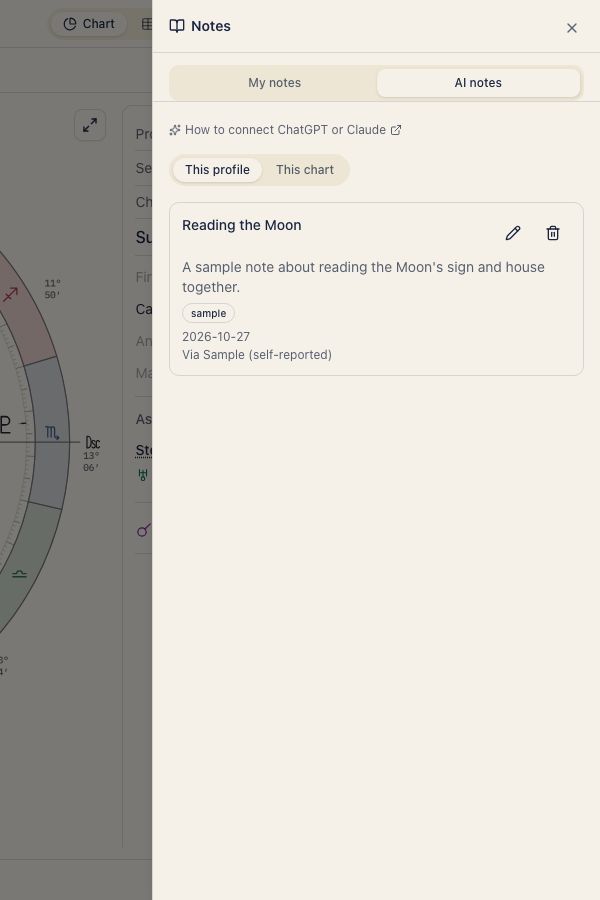
create_ai_memo - save an AI note
Saves a note from the conversation, tied to a set of birth details. Before it saves, the AI shows you whose it is, the title, the content, and the tags, and asks you to agree. A first call that saves nothing is the normal first step, not an error. After saving, the AI repeats the name so a wrong target is caught.
- “Save this reading as an AI note for me.”
- “Keep what we just discussed as a tagged AI note for my mother.”
list_ai_memos - list AI notes
Lists the AI notes tied to a set of birth details, newest first. It returns titles, tags, and similar details, not the body.
- “List my AI notes.”
- “Do I have AI notes saved for this entry?”
get_ai_memo - read an AI note
Loads the full body of one AI note. The AI asks you first.
- “Show me the AI note we saved earlier.”
- “Read the AI note I saved about Saturn.”