Astromap
Plot each planet's angular lines across a world map to see where in the world a birth chart's themes fall.
The Astromap takes a birth chart and projects each planet’s angular lines onto a world map. You can see where on the globe each planet was rising, setting, culminating, or on the opposite side of culminating at the moment of birth. It is a place-by-place view of the same birth details.
At first, Astromap is the only applied chart shown in the sidebar.
What the lines mean
For each planet, the Astromap draws up to four lines, one for each of the chart’s angles. Where a line crosses the map, that planet was on that angle as seen from the ground below. The lines are named as they are on screen: MC, IC, AC, and DC.
- MC (public role): the planet was culminating (at the midheaven). These lines relate to vocation, reputation, and how you are seen in the world.
- IC (home): the planet was at the lower meridian. These lines relate to roots, home, and private foundations.
- AC (self): the planet was rising on the eastern horizon. This is the line that matches the ASC on the Single Wheel, and it relates to how you present yourself and the first impression you make.
- DC (relationships): the planet was setting on the western horizon. This is the line that matches the DSC on the Single Wheel, and it points to places where dealings with other people tend to come forward.
The Astromap shows ten bodies: Sun, Moon, Mercury, Venus, Mars, Jupiter, Saturn, Uranus, Neptune, and Pluto. Each planet’s lines are drawn in that planet’s color, and MC, IC, AC, and DC are told apart by their dash pattern.
Birth time is required
If the selected birth details have no birth time, the Astromap shows a prompt to edit them instead of a map. Add the exact time and the map will draw. For how to enter birth details, see Managing Birth Details.
Opening the Astromap
Open Astromap from Applied charts in the sidebar. Choose a person under Birth Details first, and the map is drawn for those birth details, centered on the birth longitude. You can also press the chart title on any chart screen and switch to it from there.
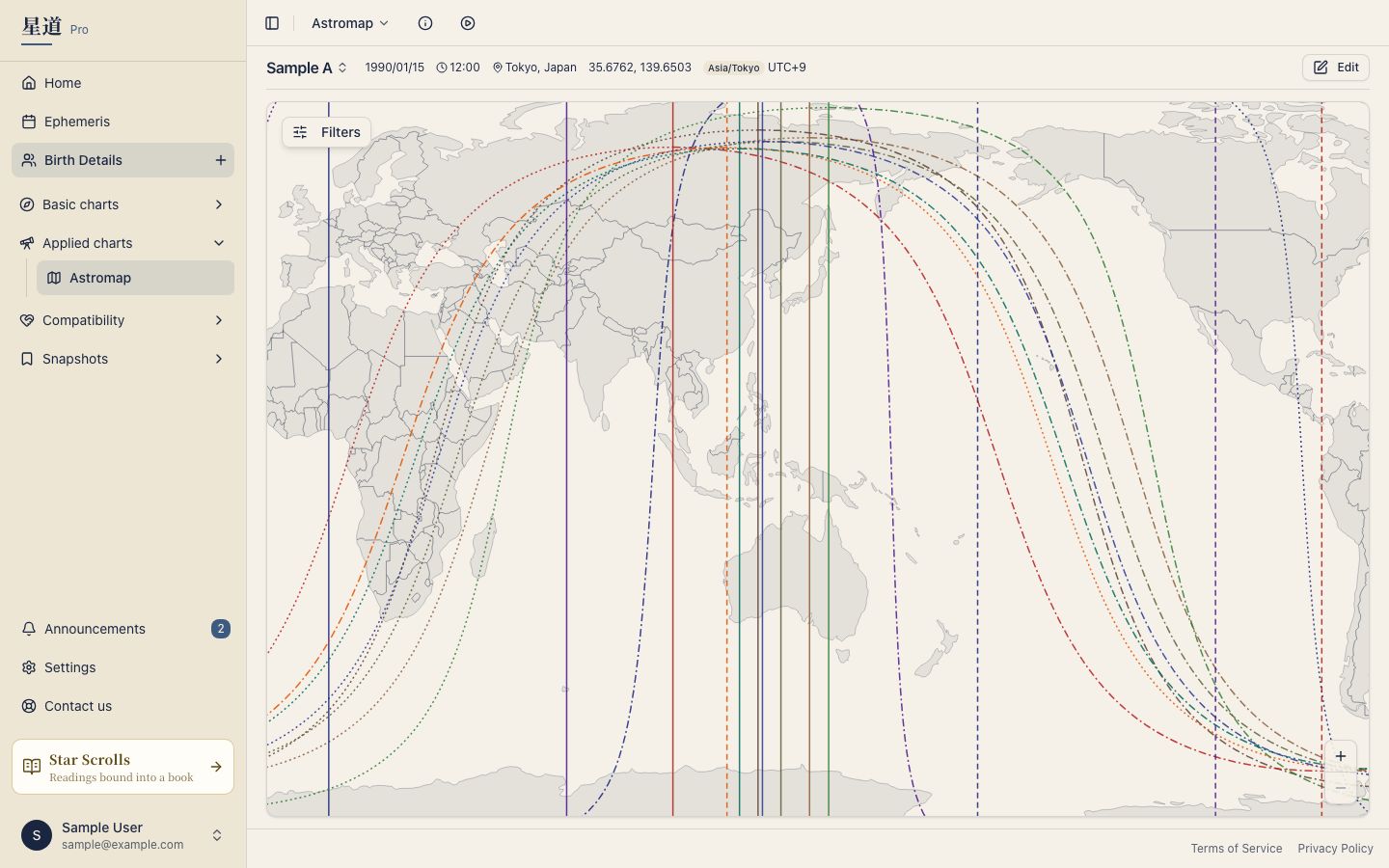
The Astromap needs the Hoshigatari plan or above.
On first load, all ten planets and all four line types are shown at once. The map is easier to read once you narrow it down to the planets and angles you care about.
Controlling the view
The map works like a standard interactive world map.
- Zoom with the + / − controls in the lower-right corner, or with the scroll wheel.
- Pan by dragging the map.
- Reset view returns the map to the world centered on the birth longitude. The button appears in the upper right once you have zoomed or panned away from the default view.
Toggling planets and lines
Open the Filters panel from the control in the upper left of the map. The panel starts collapsed so the map can use the full canvas.
The panel has three sections:
- Planets: a checkbox per planet. Use All to turn every planet on and None to clear them.
- Lines: a checkbox per line type (MC, IC, AC, DC), each shown with its dash style.
- Power points: a Parans / Power points switch, off by default. Turn it on to mark the points where two planets’ lines cross with small diamonds, and to draw faint dashed latitude lines showing how far each one reaches east and west. Hover over a diamond to see which two planets and angles it joins.
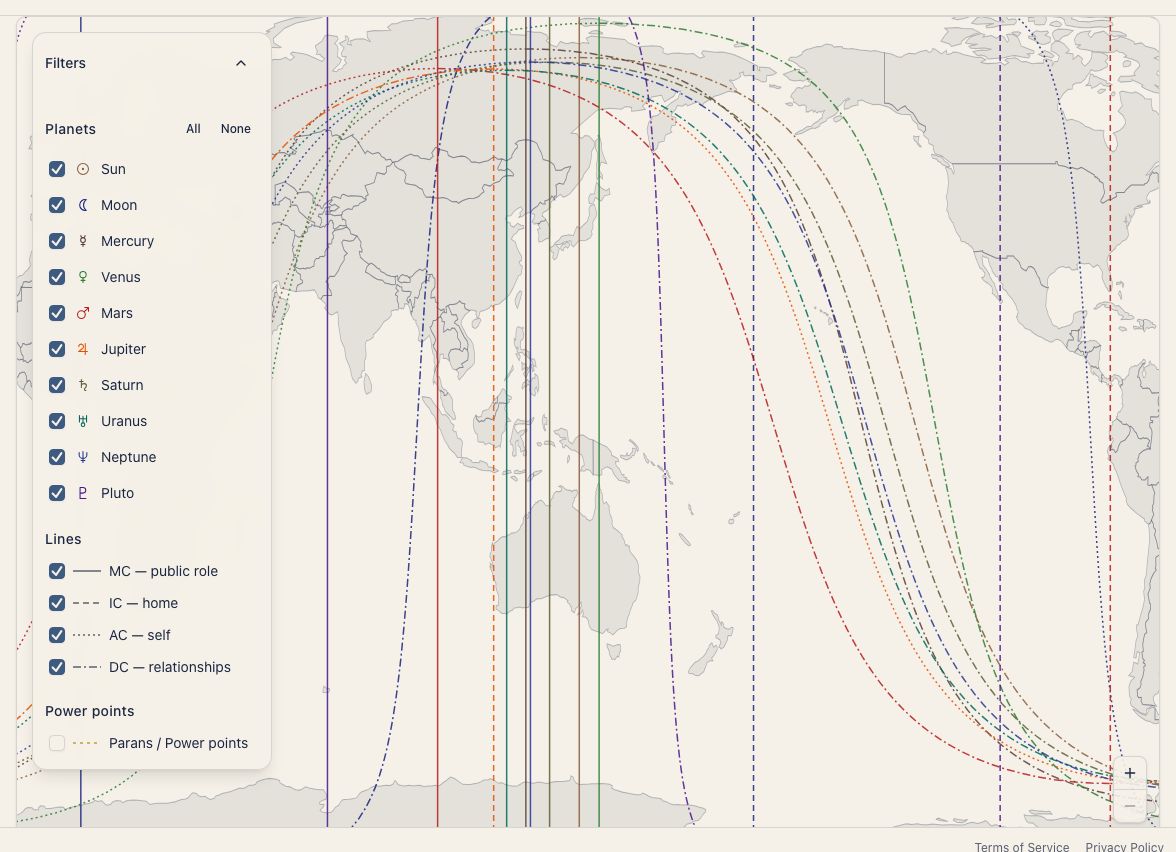
Turning a planet or a line type off removes its lines from the map right away. Narrowing to one planet, or to a single line type across all planets, is the quickest way to read a crowded map.
Reading a line
Hover over a line (or press it on a phone) to see which planet and which angle it stands for. When your reading level has interpretive text, a short reading for that planet-on-angle combination appears with the label. The reading follows your tooltip settings. See Tooltip Settings.
Country names
Click a country on the map to see its name. This is useful when you are zoomed in and want to pin down exactly where a line falls.
Related pages
- Single Wheel: the natal chart the Astromap is built from.