Output & PDF
Set the cover and chart page design for exported chart PDFs.
Output & PDF holds the design settings for exported chart PDFs. PDFs can be exported for the single wheel, triple wheel, synastry and composite chart, and these settings apply to each chart type listed.
Open the settings
Select Settings in the sidebar, then Output & PDF. The page shows Chart PDF Design.
Set up the cover
Use Show Cover Page to include or omit the cover. Under Branding, edit Logo Text, Sub Text, and Accent Color. The cover preview reflects your text and colors.
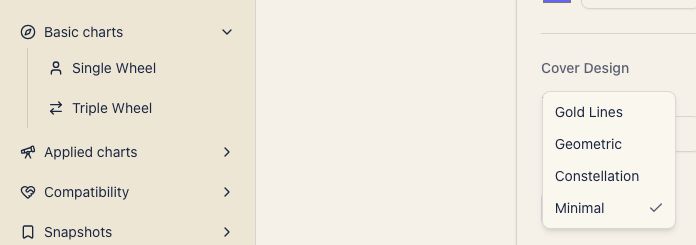
When the cover is on, Cover Design lets you choose Background Color, Text Color, and Decorative Style. The styles are Gold Lines, Geometric, Constellation, and Minimal. Under Cover Titles, you can set separate titles for Natal, Synastry, Composite, and Transit. Leave a title blank to use its default.
The logo fields are available on every plan.
Set up the chart page
Choose White, Cream, or Light Gray for the Background under Chart Page. Reset to Defaults restores the PDF design settings on this page.
For the steps to save a chart image or PDF, see Chart export.