Snapshots
How to save a chart calculation and reopen it later from the sidebar. A Hoshimichibiki plan feature.
Snapshots let you save chart calculations so you can revisit them later, like bookmarks for specific chart configurations. When you come across a notable arrangement, you can keep the chart’s whole state and return to it without re-entering the same settings. You can reopen the chart as it was on the day you saved it. There is no feature for placing it side by side with the current chart.
Snapshots are a Hoshimichibiki plan feature.
Saving a snapshot
- Open the chart you want to keep (Single Wheel, Triple Wheel, Synastry, and so on)
- Press Save in the header at the top right
- In the “Save snapshot” dialog, enter a Label that says what you are saving (for example “2026 Spring Equinox transit” or “Compatibility with Tanaka”). A date or a person’s name makes the entry easier to find later
- Press Save
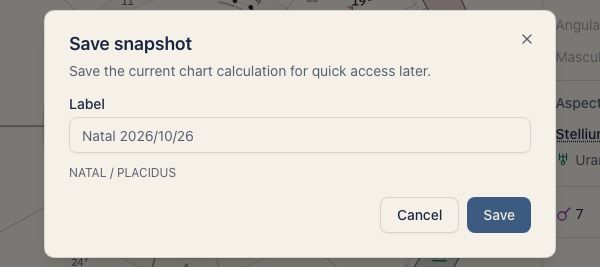
You can save a Single Wheel, Triple Wheel, Synastry, Composite, Solar Return, Lunar Return, or Solar Arc chart. Without the Hoshimichibiki plan, Save opens a prompt about the plan.
What gets saved
A snapshot keeps the chart calculation as it was when you saved it.
- Chart type: Single Wheel, Triple Wheel, Synastry, and so on
- People: whose chart it is, or which pair for a two-person chart
- Date and time: the date and time used for the calculation
- Displayed data: planet positions, aspects, and table contents
Opening a snapshot
Saved snapshots are listed under “Snapshots” in the sidebar. The section appears only when you have at least one. It shows the latest 10, with “+N” below them when more are saved.
Choose one from the list and the chart opens as it was saved.
Deleting a snapshot
In the sidebar list, use the ”×” on a row. While a snapshot is open, the delete button in the header works too. A confirmation dialog appears.
A deleted snapshot cannot be recovered.
Adding notes
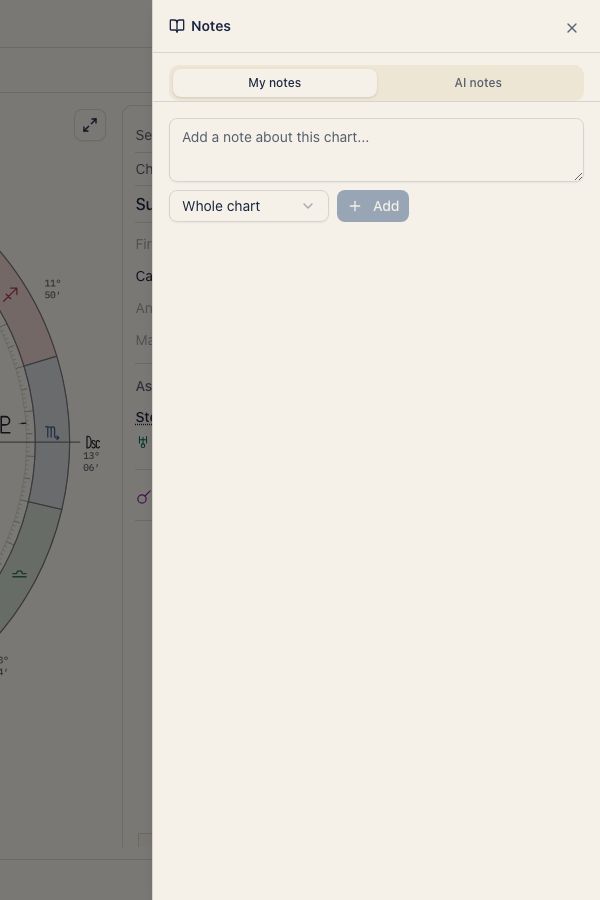
With a snapshot open, press Notes in the header to write notes that belong to that snapshot only. See Chart notes for how notes work.
Ways to use snapshots
- Transit days: save a chart for an important transit date so you can compare it later with what happened
- Your own readings: save a notable configuration or aspect pattern to read again later
- Work with clients: save a chart for each client so you can open it at the next session
Get a person’s agreement before you save their birth details. When you connect an AI, saved charts are sent to the AI service as well.
Related pages
- Chart notes: how notes attached to a snapshot work.
- Single Wheel: the chart most often saved as a snapshot.
- Triple Wheel: saving a chart for a chosen transit date.