Calculation tab
What the Calculation tab of the gear Settings does: adjust aspect orbs, choose the zodiac (tropical or sidereal) and the house system, and apply the Modern, Traditional and Evolutionary presets.
The Calculation tab decides how a chart is calculated. It holds three groups: Preset, Zodiac and houses, and Orbs. The chart redraws as soon as you change something.
Values you change here are saved to your account and apply on other screens too. On a saved chart, only the orbs appear; its zodiac and houses stay as they were when you saved it.
Preset
The presets at the top of the tab are Modern, Traditional and Evolutionary. Pressing one changes bodies, points, aspects, houses and orbs together. When your settings match none of them, Custom shows. What each preset holds, and the standard settings used when you pick none, are on Calculation Presets.
Zodiac and houses
Zodiac system
Choose Tropical or Sidereal (Lahiri). Tropical is the Western standard and the default. The zodiac applies across the app, including the ephemeris PDF and the zodiac first selected when you create a calendar subscription. Star scrolls already made stay as they were. See Zodiac System for the difference and how to choose.
House system
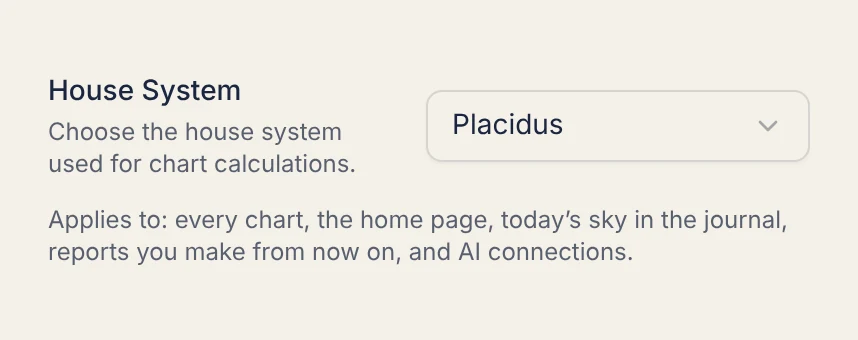
Pick one of 13 house systems, such as Placidus, Koch, Whole Sign and Equal, from the dropdown. Each choice has a one-line description. See House System for how they differ and how high latitudes are handled.
Orbs
The orb is how far an aspect may stray from the exact angle. It decides what counts as an aspect, so it lives on the Calculation tab. Each aspect has a slider.
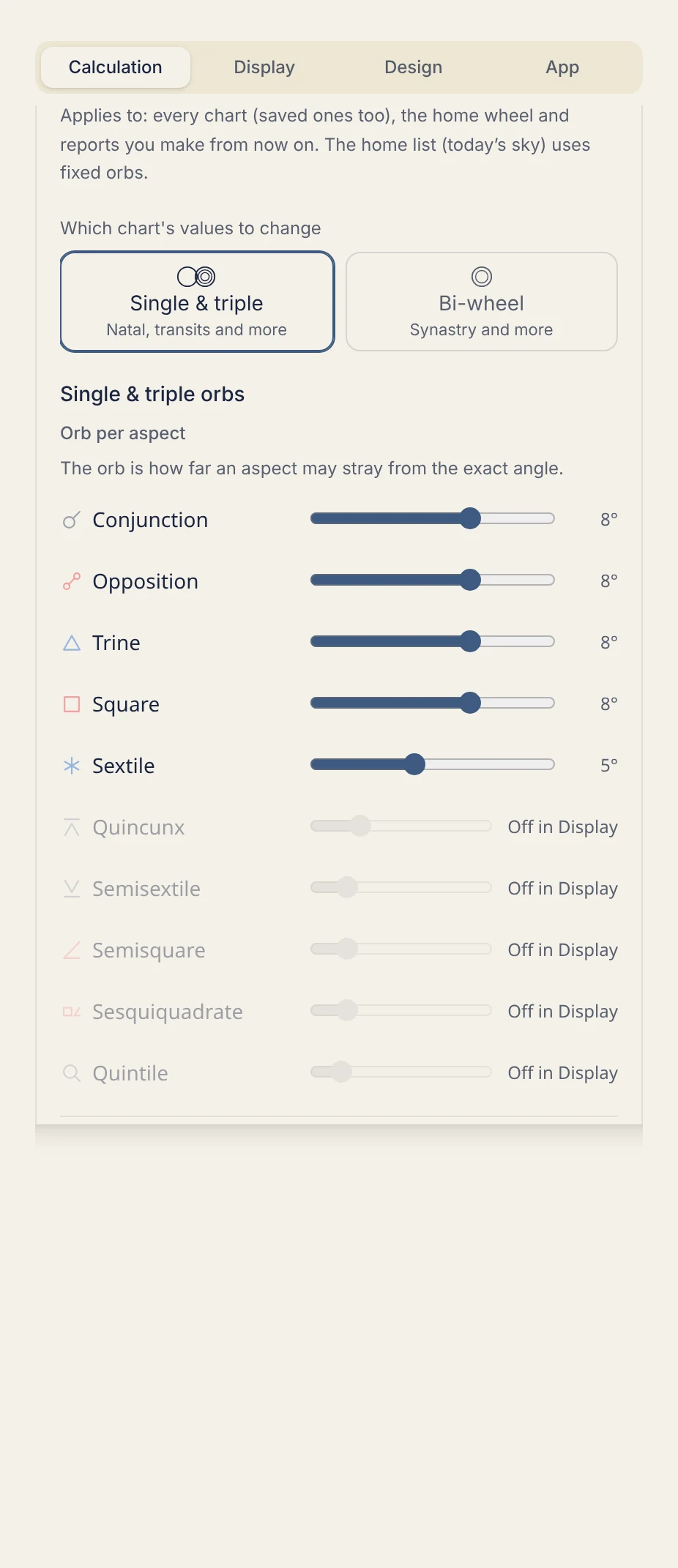
An aspect type you switched off on the Display tab gets a dimmed, locked orb row marked “Off in Display”. Switch it back on and you can adjust it again.
Sun and Moon bonus
The Sun and Moon are thought to carry more weight, so Sun bonus and Moon bonus widen the orb only for aspects that involve them. Aspects to the Sun or Moon are then detected over a wider range.
Transit and progressed orbs
On transit charts, Transit orb and Progressed orb set the width used for transiting and progressed bodies against natal bodies in the list.
Fixed star orb
On the single wheel, the Fixed star orb slider sets how close a body must be to a star to count as touching it, from 0.5° to 3°. A narrower orb highlights only very tight alignments. It is unavailable while Show fixed stars is off on the Display tab.
Switching the chart type
Orbs hold separate values for each chart type: one set shared by the single wheel and triple wheel, and one for the bi-wheel (synastry and charts with a transit overlay). The tiles under “Which chart’s values to change” at the top of the orbs start on the chart you are viewing. Pick another tile to see and change its values. The panel then says “The chart you are viewing does not change.”
Reset to standard
If you have changed too much, press Reset to standard on a group to put that group’s settings back.
Related pages
- Calculation Spec — ephemeris, nodes, time handling, and how progressions, composites, Davison charts and returns are worked out.
- Display tab — the planets, points and aspect types shown on a chart.