MCP reference (for developers)
The HOSHIDOU astrology MCP server in detail: sign-in and permissions, chart wheels in the conversation (MCP Apps), the chart tour, every tool and limits.
This page is for readers who want to know how the HOSHIDOU astrology MCP server works, the server that lets an AI client call chart calculations. For setup and example requests, see Connect AI.
Server
HOSHIDOU runs a remote MCP (Model Context Protocol) server at https://app.hoshidou.com/api/mcp, with OAuth for sign-in. Register that URL in a supported AI client and you can manage birth details, calculate charts, read a chart in depth, use Shared Stars, scan the forecast, read the ephemeris, read saved charts and Star Scrolls, change chart settings, read and write AI notes, and read the notes you wrote yourself from inside the conversation. Almost every reading feature of the app is available over MCP, except purchases and account settings.
HOSHIDOU’s astronomical engine does the calculation. The AI receives finished numbers and does the reading.
Permissions
The tools are split across seven permissions. HOSHIDOU checks the permission each time a tool is called.
| Permission | What it allows |
|---|---|
charts:read | List and read birth details, calculate charts, read a chart in depth, Shared Stars, forecast, ephemeris, read saved charts and Star Scrolls, read chart settings, read the reading policy |
charts:write | Save charts, and delete saved charts (deleting asks for confirmation first) |
profiles:write | Add, edit, and delete birth details (deleting asks for confirmation first) |
settings:write | Change chart calculation and display settings (not language, light or dark, layout, or account) |
memos:read | List AI notes, and read one after confirmation |
memos:write | Save AI notes (after confirmation) |
notes:read | Read the notes and journal you wrote yourself (asks each time; never changes them) |
AI notes are kept apart from the chart notes you write yourself. Your own notes and journal can only be read, through notes:read. The AI shows you how many there are and asks before reading them, and MCP cannot change or delete them. The notes field of birth details is not readable over MCP.
Deleting saved charts, settings:write, and notes:read were added later. Connections made before then cannot use them. To use them, reconnect the connector and approve again.
On the free plan, the fourth and later birth profiles cannot be charted (Paid Plans and Purchases), and the same applies over MCP. The AI can call HOSHIDOU up to 120 times an hour and 500 times a day (Connect AI).
The chart wheel in the conversation (MCP Apps)
In clients that support MCP Apps (Claude and ChatGPT), calling a chart tool opens a wheel in the conversation alongside the numbers.
| Wheel | Tools |
|---|---|
| One ring | get_natal_chart, get_harmonic_chart, get_draconic_chart, get_composite_chart, get_davison_chart, get_solar_return_chart, get_lunar_return_chart |
| Two rings (base chart inside, moving chart outside) | get_transit_chart, get_progressed_chart, get_solar_arc_chart, get_synastry_chart, get_composite_transit_chart, get_davison_transit_chart, get_solar_return_transit_chart |
| Three rings (natal, progressed, transit) | get_triple_chart |
- Tap a planet and only its aspect lines light up, with its position and aspects listed beside the wheel. On two- and three-ring wheels the ring is named, as in “Transit Sun” or “Natal house 10”.
- The wheel follows your app settings (theme, planets shown, aspects and orbs) and the client’s light or dark mode.
- Chart details, Shared Stars, the forecast, astromap, ephemeris, and void-of-course Moon have no wheel. They return numbers and text, and the AI explains them in words.
- Clients without MCP Apps get the numbers only, as before.
The AI reads only the numbers. The values for drawing the wheel go in the result’s _meta (hoshidou/chartWheel) and never enter the AI’s context. The wheel view is ui://hoshidou/chart-wheel-v1.html and makes no network requests. The Single Wheel tour view is ui://hoshidou/chart-tour-v1.html.
Clients remember the tool list from when you connected. If the wheel or the tour does not appear after HOSHIDOU adds a tool or view, reconnect the connector and try in a new conversation.
What MCP cannot do
Use the app for these:
- Buying, paying, and your account: buying a Star Scroll, changing plans, language, light or dark, and account settings such as email and password cannot be changed over MCP.
- Making or gifting a Star Scroll: MCP only reads finished Star Scrolls.
- Other chart images: images come only for the sky, natal and transit charts (
get_chart_image). For other charts such as synastry, and for PDF, use Chart Export. - Writing your own notes: your notes and journal can only be read. MCP cannot write, edit, or delete them.
- Renaming saved charts: the app does not have this either.
- Fine calculation settings per call: aspect types, orbs, and Arabic Parts follow your app settings.
update_chart_settingscan change those settings themselves. Per call you can set the house system, zodiac, planets shown, and fixed stars.
Tools
The tool names are the formal names the AI uses internally. Each tool has two example phrasings.
Most chart tools take the target birth details (profileId), and optionally a house system (Placidus, Whole Sign, and so on) and a zodiac (tropical or sidereal). If you leave out the zodiac, the chart uses the zodiac system from your app settings. If you leave out the house system, the house system from your app settings is used. The solar return location is fixed at the birth place. If you do not give a transit time, 12:00 is used. The app’s own starting settings are described in Default settings and calculation basis.
Managing birth details
list_birth_profiles List saved birth details
Returns all the birth details saved to HOSHIDOU. Use it before a calculation to confirm who you mean. The entry with the Me badge comes back with isSelf, so the AI can tell which one you mean by “my”.
- “List the people I have saved in HOSHIDOU.”
- “Whose birth details do I have on file right now?”
get_birth_profile Read one set of birth details
Returns one saved set of birth details.
- “Show me the birth details saved for my mother.”
- “Do I have Ayaka’s birth time on file?”
create_birth_profile Add birth details
Pass a name and birth date, and ideally a birth time and place, to save new birth details. Give the place as a name (e.g. Kyoto) and the coordinates and time zone are resolved for you. If you leave out the birth time, noon is used for the calculation; see Managing Birth Details. Astromap is the one chart that requires a birth time, and it returns an error without one.
- “Add my mother: March 4, 1962, born in Kyoto, a little after 7am.”
- “Add my friend Ayaka: November 20, 2000, 14:30, Tokyo.”
update_birth_profile Fix saved birth details
Change any of name, birth date, time, coordinates, or place. Only the fields you pass change. Even a small fix to the time can shift how the houses and angles read.
- “Correct my father’s birth time to 5:40am.”
- “Change the birthplace on the entry I just added to Fukuoka.”
delete_birth_profile Remove birth details
Permanently deletes a set of birth details, along with its notes, saved charts, and annotations. Star Scrolls you have bought are not deleted and stay readable. It can’t be undone. The AI previews what will be removed and only deletes after you clearly agree.
- “Delete the test birth details I made.”
- “Remove the ‘former colleague’ data I don’t use anymore.”
Natal and timing charts
get_natal_chart Single Wheel (natal)
Computes a birth chart to the arcsecond.
- “Cast my natal chart and read my Saturn placement.”
- “Calculate my natal chart in Whole Sign.”
start_chart_tour Single Wheel tour
Opens the natal chart in the conversation as a step-by-step tour. At each step the wheel turns and zooms, one planet, house, angle, aspect or sign lights up, and a panel explains it. There are two ways to make the script:
mode: "hoshinomaki": HOSHIDOU builds the script from the chapter order and text of that person’s natal Star Scroll. It returns an error when there is no finished natal Star Scroll.mode: "ai": the AI in the conversation writes the script (steps, usually 8 to 14) and passes it in, using the degrees fromget_natal_chart.
Clients without MCP Apps get the cleaned-up script back as data.
- “Give me a tour of my natal chart in the order of my Star Scroll.”
- “Walk me through [name]‘s natal chart one planet at a time, starting with the Sun.”
get_transit_chart Transits
Computes the planetary positions for a date against a birth chart.
- “Overlay today’s transits on my natal chart and point out what stands out.”
- “Look at the transits for August 1, 2026 and tell me which aspects to watch.”
get_chart_image Chart image (for posts and slides)
Returns the wheel as an image. Name planets (planets, e.g. ["JUPITER", "SATURN"]) and aspects (aspects, e.g. ["VENUS-TRINE-SATURN"]) to highlight, and only those are drawn clearly while the rest fades, as when you pin a line in the app. Use it for blog posts, newsletters and slides.
-
Chart (
chart):sky(the sky of a date, time and place; no saved profile needed),natal(a saved profile),transit(the natal chart inside, a date’s transits outside). -
On a transit chart, a planet without a ring means the outer (transit) ring, and an aspect reads “transit planet → natal planet”. You can also write the ring, as in
natal.SUNortransit.MARS. -
Format (
format):png(default; the image appears in the conversation),svg(a sharp SVG file returned asimage/svg+xmlcontent), orboth. -
A
skychart is the same drawing as the public chart image and also returns its URLs (svgUrl,pngUrl), so an AI can download the file into a blog repository. -
No names are drawn, and a saved profile’s natal and transit charts carry no birth date line. The Hoshidou logo and hoshidou.com sit in the corner.
-
An aspect outside its orb has no line; it comes back in
notInChart. -
“Draw the sky over Tokyo at noon on January 15, 2027, with the Venus–Saturn trine highlighted, as SVG.”
-
“Overlay the transits for the 10th of next month on my natal chart and make an image highlighting Jupiter’s aspect to my Sun.”
Public chart image
An image URL that needs no login, such as https://app.hoshidou.com/api/chart-image?datetime=2027-01-15T12:00:00%2B09:00&aspects=VENUS-TRINE-SATURN&format=svg. Give the date and time with its UTC offset, latitude and longitude (lat, lon), planets to highlight (highlight, comma-separated), aspects (aspects), no background (background=transparent), and the format (png or svg). Up to 30 requests a minute per IP.
get_progressed_chart Secondary progressions
Computes the secondary progressed chart to a given date.
- “Show me my progressions for now.”
- “Where is my progressed Moon in 2027?”
get_solar_arc_chart Solar arc
Computes the solar arc directed chart to a given date.
- “Give me my solar arc as of today.”
- “Does anything hit my MC by solar arc next spring?”
get_forecast Forecast (scan a window)
Lists when moving planets make one of the five major aspects to natal points over a window of up to three years: the day each enters and leaves the orb, and every exact moment (UT). A retrograde loop that perfects up to three times is one row. It is the same calculation as the Forecast screen.
-
method: "transit": Jupiter to Pluto and Chiron by default, with a 3° orb. For windows of 92 days or less, the Sun to Mars can move too. -
method: "progressed": the Sun to Mars, with a 1° orb. It also returns when the progressed Sun and Moon enter a sign or a natal house. -
You can change the moving planets (
movers), the aspects (aspects), and the orb (orb). Without a birth time, the ASC and MC are left out and progressed dates can shift by about half a year. -
“Over the next three years, list the aspects transiting Saturn and Pluto make to my Sun, Moon, and Ascendant, in date order.”
-
“List the aspects of my progressed Sun and Moon in 2027 with a 1° orb.”
get_triple_chart Triple Wheel (natal, progressed, transit)
Computes natal, secondary progressions, and transits as three rings with cross-aspects.
- “Cast the Triple Wheel (natal, progressed, transit) for today.”
- “What aspects line up in my Triple Wheel for December 2026?”
Reading a chart in depth
These return the charts and values the app’s screens calculate on the spot, with the same calculation.
get_harmonic_chart Harmonic chart
Calculates the Harmonic Chart: the natal degrees multiplied by N, from 1 to 180. Aspects are recalculated with your settings, as in the app. Houses and angles stay natal.
- “Show my 5th harmonic and list the planets that tie together strongly.”
- “Compare which planets gain aspects in the 7th and 9th harmonics.”
get_draconic_chart Draconic chart
Calculates the Draconic Chart: the whole chart turned so that the North Node sits at 0° Aries.
- “Show my draconic chart and tell me which planets fall on my natal planets.”
- “What are my draconic Sun and Moon signs?”
get_chart_details Chart details
Returns, for one natal chart, the readings on the app’s Single Wheel screen in one go:
- per planet: dignity, term, decan, declination and out-of-bounds, and house
- mutual receptions, aspect patterns, and the chart shape
- counts of elements, modalities, polarities, and house types; hemispheres; the Moon phase
- sect (day or night chart, with the sect light, benefic, and malefic)
- the profection year for a given date
- the eight Arabic Parts
Without a birth time, values that depend on the houses (houses, sect, profection, hemispheres, Arabic Parts) are left out.
- “Look at my dignities and sect and tell me which planet is strongest.”
- “Read this year’s profection: which planet rules the year, and where is it in my natal chart?”
Returns
get_solar_return_chart Solar return
Computes the solar return for a given year, cast at the birth location. Read it for the year that starts on your birthday.
- “Cast my 2026 solar return.”
- “Read my solar return for what the year from this birthday looks like.”
get_lunar_return_chart Lunar return
Computes the first lunar return on or after a given date.
- “Give me my next lunar return.”
- “Calculate the first lunar return on or after July 2026.”
get_solar_return_transit_chart Transits to the solar return
Lays the transits of a given date over the solar return of a given year (two rings), as on the app’s solar return screen.
- “Lay next month’s transits over this year’s solar return.”
- “In my 2026 solar return, which aspects are active on the June solstice?”
Relationship and two-person charts
get_synastry_chart Synastry
Overlays two saved natal charts and computes the cross-aspects between them.
- “Run a synastry between me and my partner and explain the Sun and Moon aspects.”
- “Cast my synastry with Ayaka.”
get_shared_stars Shared Stars
Scores the synastry of two people the way the app’s Shared Stars screen does, in seven areas. Each area has tension and harmony (not good or bad), a strength of 0 to 5 stars, a balance, and the contacts counted. It also returns the house overlays: which of each person’s houses the other’s planets fall in. Orbs, planets, and aspects follow your synastry settings. Read it as where two people meet and rub, never as a verdict on the relationship.
- “Show Shared Stars for me and [name], and read the areas with the most tension first.”
- “In our house overlays, which of my houses gets the most of their planets?”
get_composite_chart Composite
Builds one relationship chart from the midpoints of two people.
- “Cast the composite for me and him.”
- “Read what our midpoint composite says about the relationship.”
get_composite_transit_chart Transits to the composite
Computes the transits to two people’s composite for a given date, to read the relationship over time.
- “Read our year ahead through the transits to our composite.”
- “What transits are hitting our relationship in 2026?”
get_davison_chart Davison chart
Calculates a real sky for two people: the moment halfway between their births, seen from the place halfway between their birthplaces. The midpoint moment and place come back with it.
- “Make the Davison chart for me and [name].”
- “Read the Sun and Moon in our Davison chart.”
get_davison_transit_chart Transits to the Davison chart
Computes the transits to two people’s Davison chart for a given date.
- “Lay today’s transits over our Davison chart.”
- “What transits touch our Davison chart next month?”
Place charts
get_astromap_chart Astrocartography (relocation)
Computes each planet’s MC/IC/AC/DC lines and the parans where they cross, mapped across the Earth. Requires a known birth time.
- “Cast my astromap and tell me where my Venus lines run.”
- “If I were to relocate, which places look good by the relocation lines?”
Reading saved charts
list_saved_charts List saved charts
Lists your saved chart snapshots.
- “List my saved charts.”
- “Do I have any charts saved from before?”
get_saved_chart Read a saved chart
Loads a saved snapshot, including its full calculation data.
- “Load the calculation data from the chart I just saved.”
- “Show me what’s in that snapshot again.”
save_snapshot Save a chart
Calculates a chart for saved birth details and stores it as a saved chart. You can open it later from Snapshots in the app’s sidebar. It can save a Single Wheel, transits, a Triple Wheel, synastry, a composite, a Davison chart, a solar return, a lunar return, or solar arc, among others.
- “Save today’s transits as a saved chart for me.”
- “Save the synastry between me and my partner.”
delete_saved_chart Delete a saved chart
Permanently deletes one saved chart. The notes you wrote on it go with it. AI notes linked to it are kept and only lose the link. Birth details are not touched. It cannot be undone, so the AI first shows what will be removed and acts only after you clearly agree.
- “Delete the saved charts I made for testing.”
- “I don’t need last year’s saved transits any more. Delete them.”
Reading Star Scrolls
list_reports List Star Scrolls
Lists your completed Star Scrolls (read-only; it does not create new ones).
- “List my completed Star Scrolls.”
- “Do I have any past Star Scrolls?”
get_report Read a Star Scroll
Loads the full text of a given Star Scroll.
- “Load the full text of last month’s Star Scroll.”
- “Summarize what that Star Scroll said.”
I AM mirror policy
get_iam_mirror_policy Reading policy
Returns the policy HOSHIDOU asks the AI to follow when it reads a chart: no predictions or diagnoses, a way to know yourself, and no pointing to outside services. The same policy is available as the MCP prompt hoshidou_iam_mirror and the resource hoshidou://guides/iam-mirror-policy (English at /en). This tool is for clients that do not show prompts or resources.
- “Load HOSHIDOU’s I AM mirror policy, then read my natal chart.”
- “Show me HOSHIDOU’s reading policy in English.”
Ephemeris
get_monthly_ephemeris Monthly ephemeris
Returns planetary positions, key events, and new and full Moon times for a given month. The new and full Moons use the same calculation as the Ephemeris screen.
- “Show me the planetary movements for August 2026.”
- “What are the main planetary events next month?”
get_voc_moon Void-of-course Moon
Returns the void-of-course Moon periods for a given month.
- “Tell me the void-of-course Moon times for August 2026.”
- “When is the Moon void this month?”
Chart settings
get_chart_settings Read chart settings
Returns the chart calculation and display settings in effect (house system, zodiac, planets shown, aspects and orbs, how Shared Stars counts, and so on) and which ones you set yourself.
- “Show my HOSHIDOU settings. Which ones did I change from the default?”
- “What are my aspect orbs set to?”
update_chart_settings Change chart settings
Changes the same settings as the app’s settings screen: set a value or put it back to the default. Each change comes back as “before → after”. Language, light or dark, layout, and account cannot be changed. Needs the settings:write permission.
- “Switch my house system to Whole Sign and my zodiac to sidereal.”
- “Put my aspect orbs back to the default.”
AI notes
Notes an AI saves are stored apart from the notes you write yourself. In the app’s chart screens they appear in the AI notes tab of the Notes panel.
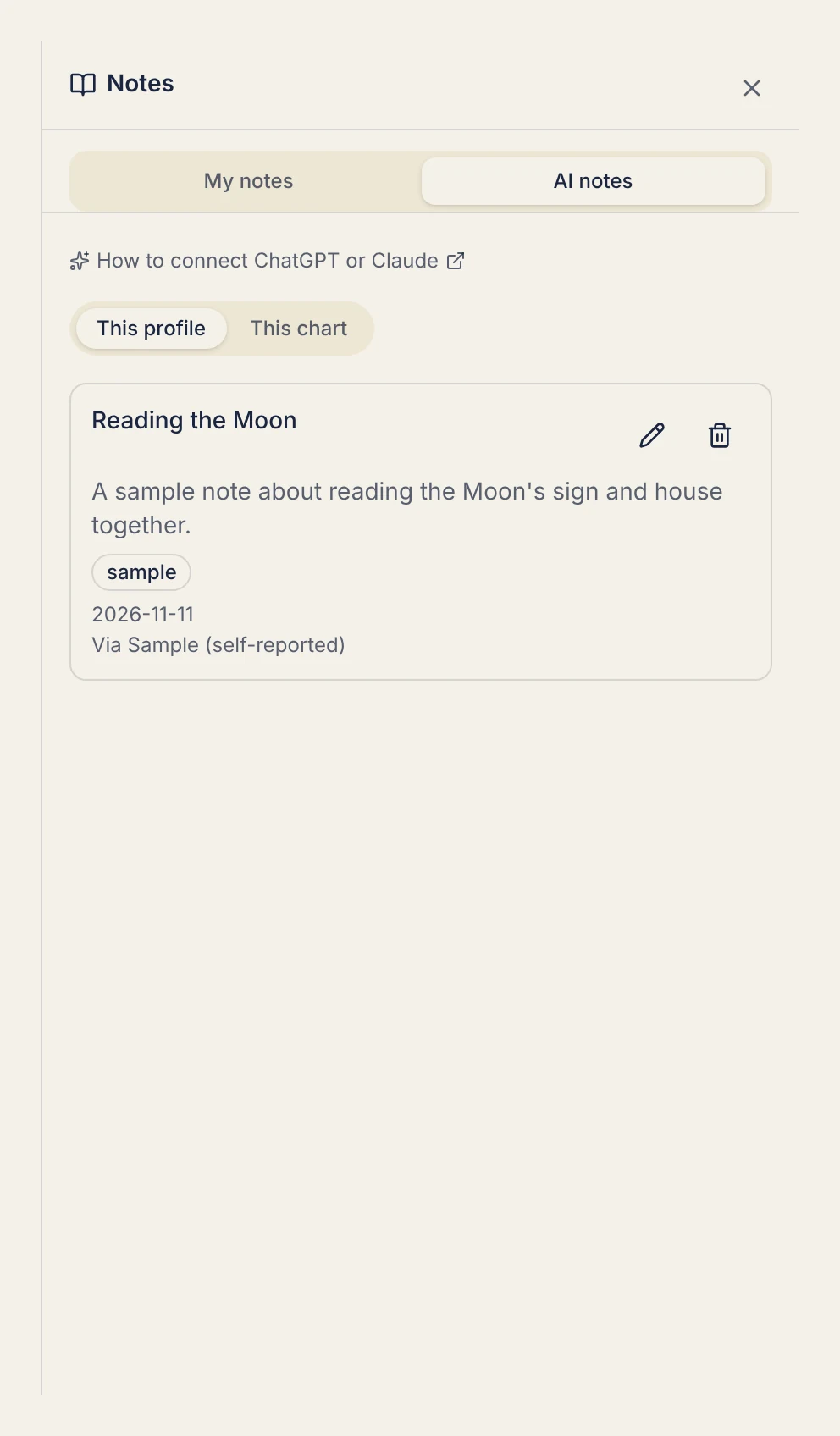
create_ai_memo Save an AI note
Saves a note from the conversation, tied to a set of birth details. Before it saves, the AI shows you whose it is, the title, the content, and the tags, and asks you to agree. A first call that saves nothing is the normal first step, not an error. After saving, the AI repeats the name so a wrong target is caught.
- “Save this reading as an AI note for me.”
- “Keep what we just discussed as a tagged AI note for my mother.”
list_ai_memos List AI notes
Lists the AI notes tied to a set of birth details, newest first. It returns titles, tags, and similar details, not the body.
- “List my AI notes.”
- “Do I have AI notes saved for this entry?”
get_ai_memo Read an AI note
Loads the full body of one AI note. The AI asks you first.
- “Show me the AI note we saved earlier.”
- “Read the AI note I saved about Saturn.”
Your own notes and journal
read_my_notes Read your own notes and journal
Reads the notes and journal you wrote in the app, for one set of birth details. The first call returns only the counts; the AI asks whether it may read them before it reads the text. It only reads, and never edits or deletes. Needs the notes:read permission. Each journal entry carries the natal house and sign the Moon was in that day.
- “Read my journal and find what the days with the Moon in my 4th house have in common.”
- “Read back the notes I wrote about Saturn and compare them with today’s reading.”